Switching from Cable to IPTV: The Most Common Mistakes to Avoid
Essential guide for beginners: device compatibility, home network tuning, player app setup, subscription testing, and avoiding costly traps when ditching traditional cable TV.
Why People Are Switching from Cable TV to IPTV
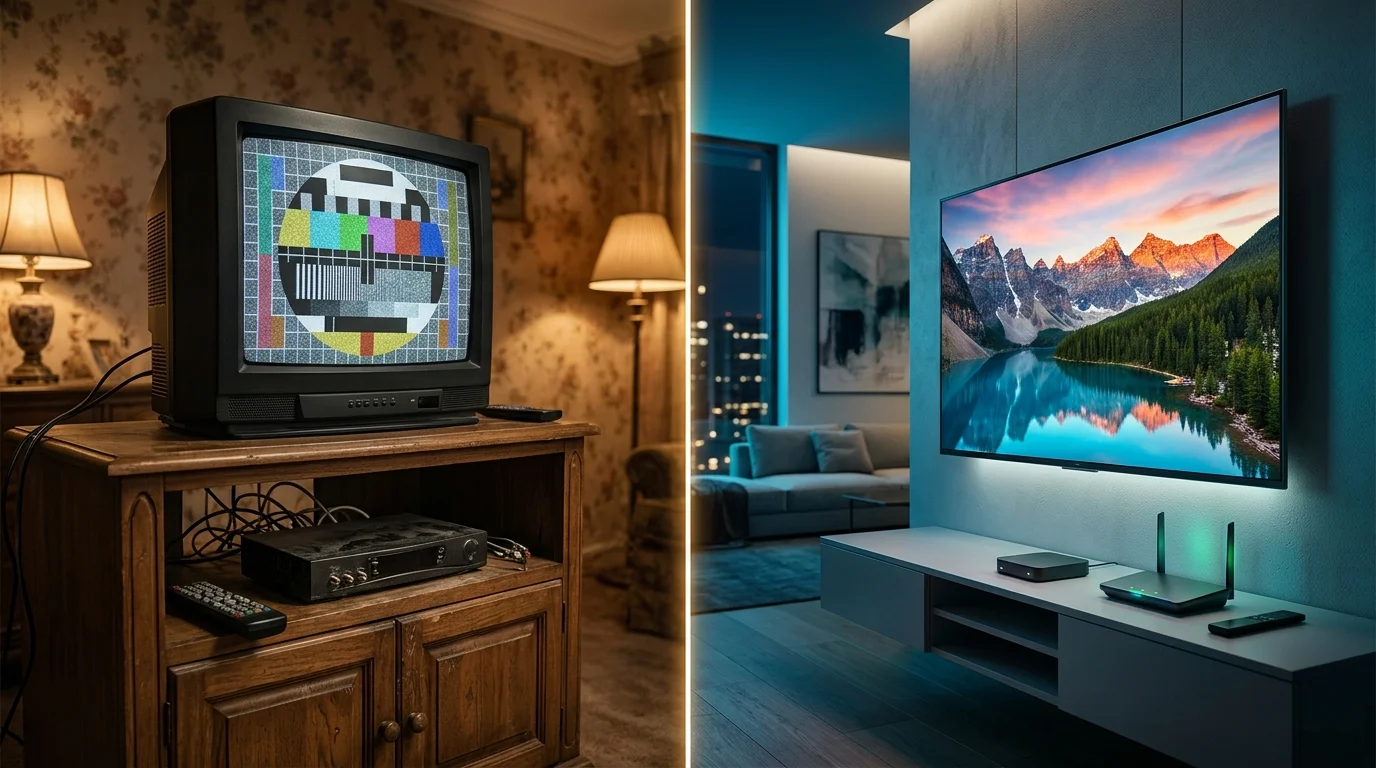
Switching from cable to IPTV represents the single largest entertainment shift for American households in 2026. For decades, traditional cable television was the undisputed standard for local broadcasts, prime-time entertainment, breaking news, and live sports. Yet ballooning monthly statements, mandatory equipment fees, and rigid contracts have turned cable into a financial drain. With average monthly bills surpassing $150 to $180 once regional sports fees and broadcast surcharges are tacked on, millions of cord-cutters are seeking modern, flexible alternatives.
This is where Internet Protocol Television enters the picture. When you choose a reliable service like our IPTV USA premium streaming service, you gain access to more than 50,000 live channels and 134,000 on-demand titles in pristine 4K and Full HD resolution—all for a fraction of what legacy providers charge. There are no contracts, no box rental fees, and no surprise price hikes after promotional periods expire.
However, switching from cable TV to IPTV is not simply a matter of swapping out a set-top box. Because IPTV relies on broadband data rather than dedicated coaxial lines, beginners often run into unexpected hurdles. When viewers complain that their new stream freezes during a high-stakes football match or that their channel guide is completely blank, the culprit is almost never the technology itself. Instead, it traces back to typical IPTV beginner mistakes during hardware selection, network setup, or app configuration. Avoiding these early missteps is the secret to enjoying a seamless, high-definition viewing experience from day one.
Understanding IPTV Before Making the Switch
To steer clear of early headaches, you must first understand how IPTV functions behind the scenes. Unlike conventional cable that transmits signals through dedicated physical infrastructure into a proprietary decoder, IPTV delivers video packets over standard internet protocols (TCP/IP). When you select a channel on your screen, your playback application contacts a content delivery server, receives the requested stream, decodes the digital video frames, and renders them in real time.
This architecture introduces three critical distinctions every new cord-cutter must grasp:
- Network quality dictates stream stability: Your IPTV feed shares household bandwidth with consoles, video calls, smartphones, and smart appliances. Without adequate throughput and low latency, playback will inevitably suffer.
- The player app is decoupled from the subscription: In the cable world, the provider controls both the feed and the box interface. With IPTV, your subscription provides stream credentials, while you choose the player application (such as TiviMate or IPTV Smarters Pro) that displays the guide and controls playback.
- Architecture variations impact performance: How channels are routed across internet backbones makes a significant difference. To understand how content travels from server to screen, review our technical breakdown of IPTV multicast vs unicast streaming to see how stream delivery models influence bandwidth demands.
A flawless IPTV setup depends on three interdependent pillars: a high-uptime IPTV provider, a sufficiently powerful streaming device, and a low-jitter network connection. If any single pillar is weak, your overall streaming quality will degrade.
The Most Common IPTV Mistakes to Avoid
Navigating the transition from cable can be tricky without a clear roadmap. Below are the twelve most frequent common IPTV mistakes new cord-cutters encounter, along with practical, proven solutions for each.
Choosing an IPTV Service Without Thorough Research
One of the costliest IPTV subscription mistakes is signing up with an unverified, fly-by-night provider found through a random social media post. Shady providers frequently oversell their server bandwidth, leading to massive crashes during high-demand sporting events. Many also advertise staggering channel counts filled with inactive, looping, or low-resolution links.
Always choose an established provider that guarantees transparent infrastructure, verified 99.9% uptime, responsive customer support, and dedicated high-speed servers. Taking time to verify reputation protects both your wallet and your weekend viewing.
Ignoring Connection Stability and Latency
Many users assume that paying for a 300 Mbps internet plan automatically prevents streaming hiccups. Unfortunately, raw download speed is only one piece of the puzzle. Sustained live video playback requires low latency (ping under 50ms), minimal jitter (under 15ms), and near-zero packet loss.
If packets get dropped between your router and the streaming server, your player cannot buffer ahead because live television happens in real time. The stream stutters, loops, or freezes completely. To diagnose and resolve these connection bottlenecks, consult our step-by-step tutorial on fixing IPTV buffering and freezing.
Relying on Congested 2.4 GHz Wi-Fi Instead of Ethernet
Convenience leads many beginners to connect their streaming device over standard 2.4 GHz Wi-Fi. In modern homes, the 2.4 GHz frequency is saturated by smartphones, laptops, baby monitors, microwave radiation, and neighboring networks. These micro-interferences create packet retransmissions that cause sudden audio drops and spinning loading wheels.
Whenever physically possible, connect your streaming device directly using a wired Cat6 Ethernet cable. If running a wire across the room is impractical, switch your device to the 5 GHz Wi-Fi band or utilize a powerline Ethernet adapter to deliver a clean, dedicated signal straight to your TV.
Purchasing an Underpowered or Incompatible Streaming Device
Verifying broad IPTV compatibility is vital before investing in hardware. Attempting to run high-bitrate 4K IPTV streams on outdated hardware—such as a first-generation streaming stick or a generic $20 Android box with 1 GB of RAM—is a recipe for disaster. These budget devices lack dedicated hardware decoders for modern HEVC/H.265 video profiles, forcing the CPU to handle decoding until it thermal-throttles and crashes.
Stick to proven, well-supported streaming hardware such as the Amazon Fire TV Stick 4K Max, Chromecast with Google TV, or the powerhouse NVIDIA Shield TV Pro. Detailed hardware instructions are available in our Amazon Firestick IPTV tutorial.
Using the Wrong Player Application or Suboptimal Decoders
Your IPTV subscription is only the source data; the application on your screen acts as the engine that renders the picture. Relying on outdated media players or generic tools that lack native live-stream buffer engines often results in choppy playback and sync errors. Furthermore, running software (SW) decoding instead of hardware (HW) decoding overloads your device's processor.
For Firestick and Android TV devices, TiviMate offers the premier television-like experience. For multi-platform setups spanning mobile, tablet, and smart TVs, IPTV Smarters Pro remains an intuitive, versatile standard. Always verify that hardware video decoding is enabled in your app settings.
Assuming Every IPTV Provider Offers Identical Features and Channels
Newcomers frequently assume all IPTV packages carry identical programming. In reality, provider lineups vary drastically. Some specialize exclusively in North American entertainment and local news, others focus on international coverage, while premier services bundle full sports packages, pay-per-view access, and extensive video-on-demand (VOD) libraries.
Before purchasing, check the channel directory for your essential regional networks, favorite sports conferences, and premium movie channels. Ensuring your must-have channels are actively maintained prevents unpleasant surprises on game day.
Skipping the Free Trial and Testing Phase
One of the most avoidable IPTV mistakes to avoid is purchasing an annual subscription without first testing how the service performs on your personal home network. Even an exceptional provider might face regional routing issues through specific local ISPs unless properly tested.
Always take advantage of a free trial or short-term pass. Stress-test the service during peak prime-time viewing windows (7:00 PM to 10:00 PM on weekends) across live sports, major network feeds, and on-demand movies. Testing during high-congestion periods confirms true real-world stability.
Locking Yourself into Long-Term Subscriptions Prematurely
Enticed by deep multi-year discounts, novice cord-cutters frequently commit to 24-month subscriptions with unverified services, only to see stream quality plummet after thirty days. Legitimate providers do not force you into long-term lock-ins.
Start with a flexible 3-month or 6-month tier on our IPTV USA pricing plans. This gives you ample time to confirm long-term server reliability, prompt customer support, and consistent stream quality before opting for a discounted 12-month renewal.
Neglecting Account Security and Sharing Credentials Carelessly
Many premium subscriptions enforce active connection limits. If you share your Xtream Codes or M3U playlist credentials with friends or family members, simultaneous logins will trigger immediate stream kicks or temporary account suspensions. Treat your IPTV login credentials with the same diligence as your primary banking passwords.
Additionally, beware of entering credentials into untrusted, third-party web portals. Stick to reputable, locally installed player applications downloaded from official repositories or verified developer repositories.
Overlooking ISP Throttling and VPN Compatibility
Major Internet Service Providers routinely deploy Deep Packet Inspection (DPI) to identify high-bandwidth media streams during peak hours, deliberately throttling user connections. If your streams stutter exclusively during prime-time matches while general web browsing remains fast, your ISP is likely throttling your connection.
Pairing your setup with a high-speed virtual private network shields your traffic from ISP monitoring. Learn how to optimize your network routing in our guide on using a VPN for IPTV streaming. If you ever encounter display errors when your tunnel connects, our walkthrough on troubleshooting IPTV black screen VPN issues provides rapid configuration fixes.
Failing to Verify EPG, Catch-Up TV, and VOD Capabilities
Transitioning from cable means leaving behind a familiar, built-in TV guide. Many discount IPTV providers skimp on Electronic Program Guide (EPG) server bandwidth, leaving you with an empty grid that lists "No Information" across all channels. Without an accurate EPG, finding scheduled programming becomes an exercise in frustration.
Ensure your chosen provider includes an automated XMLTV EPG source, responsive Catch-Up TV for past broadcasts, and regularly updated Video on Demand. Having a reliable electronic program guide is crucial for making IPTV feel as intuitive as traditional television.
Expecting Plug-and-Play Simplicity Without Proper Configuration
The final pitfall on our list is treating IPTV like a traditional closed-circuit cable box. IPTV requires a modest amount of initial setup: installing an application, inputting server URLs, configuring buffer sizes, and selecting the correct audio-video decoders. Skipping these basic setup steps leads to common IPTV setup mistakes.
Follow our structured step-by-step IPTV installation guide for detailed device configurations. If you ever run into credential errors or server authentication hiccups, our guide on fixing IPTV authorization failed errors walks you through clearing cache, validating credentials, and restoring immediate access.
How to Prepare Your Home Before Switching from Cable to IPTV
A flawless transition requires setting up your home network environment ahead of time. Taking an afternoon to audit your connectivity ensures that cutting the cord feels like a massive upgrade rather than a downgrade.
Conduct a Comprehensive Speed and Jitter Audit
Do not rely solely on basic speed tests. Run tests during peak evening hours (between 8:00 PM and 10:00 PM) when neighborhood traffic peaks. Check not just your download speeds, but your ping latency and jitter. If your jitter exceeds 20ms or you detect any packet loss, restart your modem/router or speak to your internet provider about signal line maintenance before cancelling cable.
Optimize Your Central Router Placement
Ensure your primary Wi-Fi router is situated centrally, off the floor, and away from thick masonry walls or metallic appliances. If your living room media center is far from your router, install a dedicated Wi-Fi 6 mesh node or run a flat Cat6 Ethernet cable along the baseboard to ensure pristine signal delivery.
Consolidate Your Hardware Ecosystem
Audit each television in your home. If a secondary bedroom TV relies on a sluggish, discontinued smart TV platform, equip it with an inexpensive, modern streaming stick. For an in-depth blueprint covering every component of a robust cord-cutting system, read our guide on building the ultimate home IPTV setup.
How to Choose the Right IPTV Device
Your streaming hardware directly influences stream decoding speed, menu navigation smoothness, and overall user satisfaction. Below is an objective comparison of the leading hardware options for IPTV streaming in 2026:
| Streaming Hardware | Target User | Key Strengths | Limitations | IPTV Rating |
|---|---|---|---|---|
| Amazon Fire TV Stick 4K Max | Best for Most Homes | Wi-Fi 6E, fast quad-core CPU, broad app sideloading support | Amazon ad-heavy home screen interface | ★★★★★ |
| NVIDIA Shield TV Pro | Enthusiasts & 4K Sports | Gigabit Ethernet, AI 4K upscaling, Tegra X1+ processor | Higher upfront purchase price (~$199) | ★★★★★ |
| Apple TV 4K | Apple Ecosystem Users | Ultra-fast A15 Bionic chip, clean UI, Gigabit Ethernet port | Tivimate not available on tvOS (uses alternative apps) | ★★★★☆ |
| Chromecast with Google TV | Budget-Conscious Streamers | Clean Google TV interface, voice remote, Play Store access | Requires external USB-C hub for wired Ethernet | ★★★★☆ |
| Built-in Smart TV Apps | Casual Viewers | No external dongles, cables, or additional remotes needed | Underpowered TV processors, restricted app stores | ★★★☆☆ |
For 90% of cord-cutters, the Amazon Fire TV Stick 4K Max equipped with an optional micro-USB Ethernet adapter offers the sweet spot of responsive performance, widespread app compatibility, and affordability.
Internet Speed and Network Requirements for IPTV
What is the best internet speed for IPTV playback? While many online forums give overly simplistic answers, your true bandwidth requirement depends entirely on stream resolution, encoding compression, and concurrent household usage.
Remember that these figures represent dedicated, unthrottled bandwidth per active screen. If your household simultaneously streams a 4K movie in the living room, plays an online multiplayer game in the bedroom, and runs video calls in a home office, your overall broadband subscription should provide at least 100 to 200 Mbps to maintain adequate headroom.
Equally critical is preventing bufferbloat. When household downloads overwhelm your router's queue, latency spikes from 20ms to 400ms in an instant. This sudden bottleneck creates persistent IPTV buffering problems that disrupt live broadcasts. Enabling Quality of Service (QoS) on your home router ensures streaming devices receive priority network routing at all times.
How to Set Up IPTV Correctly for the First Time
Configuring your system correctly takes less than fifteen minutes when you follow a methodical process. These practical IPTV streaming tips will ensure you achieve instant stability:
Install a Dedicated IPTV Player
Download a specialized player application directly onto your hardware. For Firestick or Android TV devices, use the Downloader app to sideload TiviMate, or download IPTV Smarters Pro directly from the app store.
Connect Using the Xtream Codes API
When given the choice between an M3U URL and Xtream Codes API, always select Xtream Codes. It allows your player to parse categories dynamically, keeps channel lineups updated automatically, and dramatically accelerates EPG downloading compared to massive static playlist files.
Configure Hardware Decoding and Buffer Size
Navigate to your player's playback settings. Set your video decoder to Hardware (HW). In the stream buffer size settings, choose Normal or Large (approx. 5 to 10 seconds of buffer). This provides a protective cushion against momentary Wi-Fi fluctuations without introducing noticeable channel-changing delay.
Verify Audio Sync and Refresh Rates
Test playback across multiple channels. If you ever notice speech drifting out of sync with actors' lips on soundbars or home theater setups, consult our dedicated guide on fixing IPTV audio delay and lip-sync issues to adjust audio offset timing perfectly.
Cable TV vs IPTV: Important Differences
Before cancelling your legacy service, review this direct feature-by-feature comparison to set realistic expectations for your household:
| Feature & Functionality | Traditional Cable Television | Premium IPTV Service |
|---|---|---|
| Typical Monthly Cost | $130 – $190+ (with taxes & fees) | $10 – $20 / month |
| Contractual Commitments | 1 to 2 year binding agreements | Zero contracts; cancel anytime |
| Hardware Rental Charges | $10–$15/mo per set-top box | Zero equipment fees (use own devices) |
| Total Channel Selection | 150 to 300 channels | 50,000+ live worldwide channels |
| Video on Demand (VOD) | Limited titles, frequent PPV fees | 134,000+ movies & full series included |
| Multi-Screen Mobility | Tethered to home coax cable outlets | Stream on TVs, phones, tablets, laptops |
| Installation Requirements | Technician dispatch & coax wiring | Self-installation in under 15 minutes |
A Practical Checklist Before Cancelling Cable TV
Do not make the final call to your cable company until you have checked off every item on this pre-cancellation roadmap. Taking this cautious approach guarantees zero regret.
✅ Pre-Cancellation Readiness Checklist
- I have actively tested my IPTV service for at least 7 to 14 days without interruption.
- My essential local broadcast stations, regional news, and favorite sports channels are verified.
- I have stress-tested high-demand live sports broadcasts during Saturday and Sunday prime time.
- My Electronic Program Guide (EPG) populates reliably with full show summaries.
- All family members are comfortable using the new remote control and app interface.
- My streaming hardware is connected via wired Ethernet or high-speed 5 GHz Wi-Fi.
- I have confirmed my standalone home internet plan is separate from my cable TV billing.
- I have identified any returnable cable provider hardware (boxes, remotes, modems) to avoid unreturned equipment penalties.
Run your IPTV subscription in parallel with your cable TV for at least two weeks before cancelling. The peace of mind and verification this provides is worth far more than the temporary overlapping cost.
Ready to Ditch Cable? Start with a Free Trial Today
Experience over 50,000 live channels, 134,000+ on-demand movies, and buffer-free 4K sports with zero commitment.
🎯 Claim Your Free Trial via WhatsAppFrequently Asked Questions
What internet speed do I need to switch from cable to IPTV?
For standard HD streaming (720p), you need a consistent download speed of at least 10–15 Mbps. For Full HD (1080p), aim for 20–25 Mbps. For crystal-clear 4K Ultra HD streaming, you require 40–50 Mbps of sustained, unthrottled throughput. Connection stability, low ping (under 50ms), and zero packet loss are far more critical for preventing stream interruptions than high raw download numbers alone.
Can I use my Smart TV directly for IPTV without a streaming device?
Yes. Modern Samsung (Tizen), LG (webOS), Sony, and Android-powered Smart TVs can run popular IPTV applications like IPTV Smarters Pro, Smart IPTV, or IBO Player directly from their native app stores. However, dedicated streaming devices like the Fire TV Stick 4K Max or Apple TV 4K feature significantly more powerful processors, receive faster software updates, and deliver a more fluid user experience.
Should I always use a VPN with IPTV?
Using a VPN is strongly recommended for IPTV cord-cutters. A quality VPN with modern WireGuard protocols encrypts your data packets, preventing your Internet Service Provider from inspecting your streaming traffic and intentionally throttling your connection during high-traffic sports events. It also protects your personal privacy across all connected home devices.
How do I test an IPTV service before committing to a long subscription?
Always request a 24-hour free trial or opt for a 1-month introductory plan before purchasing an annual subscription. Be sure to test the service during peak prime-time hours (between 7:00 PM and 10:00 PM on weekends) across high-profile live sporting events. This confirms how the provider's server infrastructure performs under heavy concurrent viewer loads.
What is the best IPTV player app for beginners?
For Amazon Firestick and Android TV devices, TiviMate is widely considered the gold standard due to its sleek, cable-like interface and advanced guide customization. For cross-platform ease of use across iOS, Apple TV, Android mobile, and Windows PCs, IPTV Smarters Pro offers the simplest setup process for beginners.
Why does my IPTV buffer even though my internet speed is fast?
Fast speed test results do not guarantee buffer-free IPTV. Common root causes include local Wi-Fi channel congestion on the 2.4 GHz band, aggressive ISP traffic throttling during prime time, misconfigured player decoder engines (software decoding instead of hardware decoding), or an overloaded provider server. Switching your device to a wired Ethernet cable resolves over 70% of buffering complaints immediately.
Is it safe to cancel cable TV once I switch to IPTV?
Yes, provided you complete a proper transition period. Keep your cable service active for 1 to 2 weeks while you test your IPTV service across all household televisions. Once you have verified that your essential live sports, local channels, and favorite shows stream reliably, you can confidently cancel your cable package and begin saving over $1,500 annually.
Do I need to buy new equipment when switching from cable to IPTV?
Not necessarily. If you already own a contemporary Smart TV, an Amazon Firestick, an Apple TV, or an Android streaming box, you already have the necessary hardware. The only hardware you may want to acquire is an inexpensive USB Ethernet adapter to give your streaming stick a direct, rock-solid wired connection to your home router.
Final Thoughts
Cutting the cord and switching from cable to IPTV is one of the smartest lifestyle and financial moves you can make in 2026. By breaking free from bloated $180 monthly cable bills, proprietary equipment rentals, and multi-year contracts, you unlock an expansive world of over 50,000 live worldwide channels and on-demand entertainment tailored entirely to your schedule.
The secret to long-term cord-cutting success lies in avoiding the common beginner pitfalls outlined in this guide. Take the time to audit your home network, connect via wired Ethernet, choose a reliable streaming device, and configure an intuitive player app. When you pair proper preparation with a dependable, high-uptime provider, the IPTV streaming experience genuinely outclasses legacy cable in every conceivable metric.
Ready to experience premium streaming for yourself? Explore our flexible IPTV subscription plans, check out our easy installation walkthroughs, or contact our 24/7 customer support team via WhatsApp to start your free trial today.
Experience the Ultimate Cable Alternative
50,000+ Channels · 134,000+ Movies & Series · 4K UHD Quality · 24/7 Dedicated Support
📺 Explore Plans & Pricing