
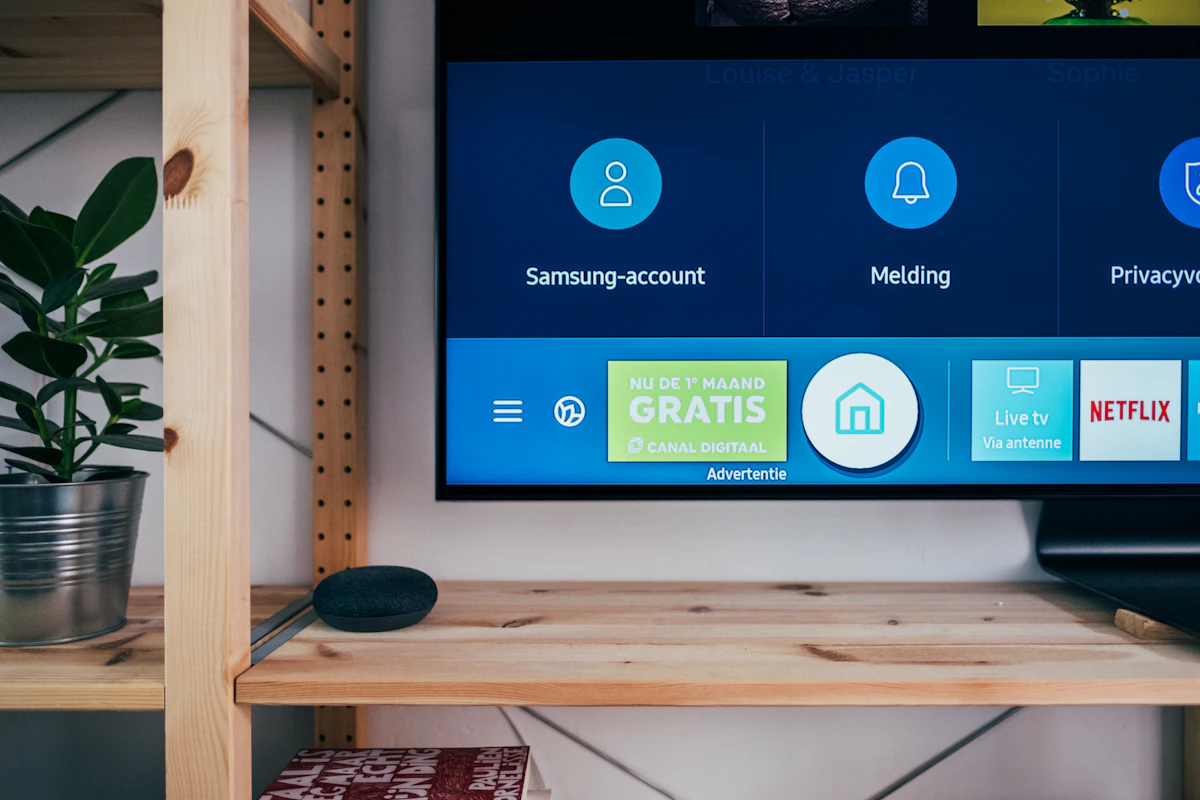
You clear your schedule, settle into your favorite chair, grab the remote, and fire up your IPTV app — only to be greeted by a cold, unfeeling message: "Authorization Failed." Or maybe every single channel on your TV guide reads "No Information," leaving you staring at a blank, useless schedule instead of the game or show you were looking forward to. Few things are as instantly frustrating as that moment.
Here's the thing: you are not alone, and this is almost always fixable. IPTV authorization errors and EPG failures rank among the most common support tickets in the entire industry. The vast majority of cases boil down to a handful of well-understood root causes — and every single one of them has a clear, actionable fix.
This guide was written by technical IPTV specialists who have diagnosed thousands of login failures, broken TV guides, and authentication errors across every major app and device type. Whether you're using TiviMate on a Fire Stick, IPTV Smarters Pro on Android, or a Smart TV app, this guide covers you completely.
We'll walk you through the exact diagnostic steps, app-by-app fixes, EPG refresh techniques, and server-side checks you need. We'll also explain when the problem isn't on your end at all — it's your provider running under-resourced, overloaded servers.
If you've been fighting constant login failures for months and you're simply done tolerating an unreliable service, you owe it to yourself to look at IPTV USA — a provider built on enterprise-grade infrastructure with 99.9% uptime, redundant server clusters, and real human support. But first, let's get your current setup working.
Understanding the "Authorization Failed" Error
What This Error Actually Means
At its core, an "Authorization Failed" error is a communication breakdown between your IPTV application and your provider's server. When you launch an IPTV app, it immediately sends your credentials — a username, a password, and/or a server URL — to the provider's backend. The server checks those credentials against its subscriber database. If anything in that handshake goes wrong, on either side, the server rejects the connection and returns an authorization error.
Think of it like a bouncer at a door. Your app is holding up an ID. If the name is misspelled, the ID is expired, the venue changed its address, or the bouncer's system is down, you're not getting in regardless of whether you're a legitimate customer.
The Four Primary Causes
- Credential Errors (Typos and Copy-Paste Mistakes): This is statistically the number-one cause of authorization failures. A single wrong character in a password, a misread digit in a server URL, or an invisible trailing space pasted from a browser can break the entire authentication sequence.
- Expired or Suspended Subscriptions: IPTV subscriptions run on fixed terms — monthly, quarterly, or annual. If your renewal date passed without payment, your account is suspended server-side, and every login attempt will return an authorization error regardless of how correct your credentials are.
- Server Maintenance or Outages: Legitimate providers occasionally schedule maintenance windows or experience unexpected downtime. During these periods, the authentication server itself is unavailable, making it look like your login is failing when the credentials are actually fine. Low-cost, budget IPTV services are especially prone to unplanned outages due to under-provisioned infrastructure.
- Multi-Device Misuse and Account Blocks: Most IPTV subscriptions enforce a simultaneous connection limit (typically 1 or 2 streams). If your account detects active sessions beyond the allowed number — or flags suspicious access patterns from multiple geographic locations — it may automatically lock the account and return an authorization error until you contact support.
Xtream Codes API vs. M3U Playlist Errors: Key Differences
The type of error you see — and the fix — often depends on how your playlist is loaded.
- Xtream Codes API Login: You enter a portal URL, username, and password directly into the app. If any of the three fields is wrong, authorization fails immediately at login. This method is more secure and easier to diagnose because the error is tied directly to credential validation.
- M3U Playlist URL Errors: With an M3U link, the URL itself contains your credentials embedded in the query string. If the URL changes on the server side, or your credentials expire, the playlist either loads as empty or returns a generic "Unauthorized" HTTP 403 error — which most apps display as "Authorization Failed."
For a complete walkthrough on setting up both connection types, see our guide: How to Add M3U Playlists and Xtream Codes to Your Smart TV.
The MAC Address Lock Problem
Apps like Smart IPTV, Duplex IPTV, and IPTV Extreme use your device's hardware MAC address as the primary identifier instead of a username and password. Your provider registers a specific MAC address to your account. If you install the app on a new device, factory reset your existing device, or sideload the app (which can generate a new virtual MAC), your app will present a MAC address that the server doesn't recognize — immediately triggering an authorization failure. This is not a typo error; it's an identity mismatch that requires your provider to re-register the new MAC address to your account.
Step-by-Step Fixes for Login & Authorization Errors
Work through these steps in order. Most users resolve their issue within the first two or three steps.
The Typos Check — More Important Than You Think
Before doing anything else, manually verify every character of your credentials. Do not assume they are correct because you copy-pasted them. Copy-paste introduces its own class of errors.
Open a plain text editor (Notepad on Windows, Notes on iOS) and type out your:
- Server/Portal URL — including the correct port number (e.g.,
:8080,:25461,:80). Confirm whether it starts withhttp://orhttps://. - Username — watch for these common character confusion pairs:
- The letter O vs. the number 0 (zero)
- The uppercase I vs. the lowercase l (el) vs. the number 1 (one)
- The letter B vs. the number 8
- Password — check for the same character confusions above, plus any special characters (
@,!,#) that may have been autocorrected by your device's keyboard.
After pasting any URL into your app, press the End key or move the cursor to the far right of the field and look for a blinking cursor position after where you expect the URL to end. An invisible trailing space — completely undetectable by eye — is among the most common causes of authorization failures seen in support tickets.
Verify Your Subscription Status
Log into your provider's customer portal or reseller panel — this is a separate website from the stream itself — and check:
- Your account expiry date. Even being one day past expiration results in an immediate server-side block.
- Your connection status. Does it show "Active," "Suspended," or "Expired"?
- Whether your username and password match what is listed in the portal (providers occasionally issue updated credentials without making it obvious).
If you don't have access to a customer portal, contact your provider's support line or Telegram channel with your username and request an account status check. A legitimate provider will respond quickly. If they don't, that tells you something important about the service quality.
Set a calendar reminder 3 days before your IPTV subscription renews. This gives you time to renew without any service interruption, even if payment processing takes a few hours.
Fix MAC Address Mismatches
If you are using a MAC address-based application (Smart IPTV, Duplex IPTV, etc.) and recently changed devices or reinstalled the app, follow these steps:
- Open the app and navigate to its "About" or "Information" screen. Your current MAC address will be displayed.
- Write down or screenshot this MAC address exactly.
- Contact your IPTV provider's support and request that they re-register this new MAC address to your account. This is a simple database update on their end that takes minutes.
- Once confirmed, restart the app. The authorization failure should be resolved immediately.
If your provider charges an additional fee to re-register a MAC address for a simple device change, that is a red flag about their customer service priorities.
Check for ISP Blocking or Network Interference
This step surprises many users: your Internet Service Provider may be blocking the specific server URL or port that your IPTV service uses, causing a connection refusal that your app interprets as an authorization failure. ISP throttling and blocking of IPTV streams is increasingly common in several markets.
How to test this: Disconnect your TV or streaming device from your home Wi-Fi. Turn on your mobile phone's hotspot and connect your streaming device to it instead. Then try to log in. If the authorization failure disappears on mobile data, your ISP's home connection is the culprit — not your credentials.
For a full diagnostic guide and bypass solutions, read: Is Your ISP Blocking Your Stream? How to Bypass IPTV Throttling.
Fixing EPG (Electronic Program Guide) Errors
What Is EPG and Why Does "No Information" Appear?
The Electronic Program Guide (EPG) is the TV schedule grid that shows you what's currently playing and what's coming up on each channel. Technically, it's a separate XML data file (usually in XMLTV format) that your app downloads from a designated URL and cross-references with your channel list using unique channel IDs.
When your TV guide shows "No Information," it means one of four things: the EPG data file failed to download, the channel IDs in your playlist don't match those in the EPG file, your device's clock is out of sync with the schedule data, or the app's locally cached EPG file is corrupted. All four are fixable.
Force a Manual EPG Refresh
Cached EPG data can expire or become corrupted. Most apps let you force a fresh download.
TiviMate:
- Open TiviMate → tap the ☰ Menu → go to Settings
- Select your playlist → tap Update
- Under EPG, tap Update Now
- Wait for the download to complete (can take 1–5 minutes depending on channel count)
IPTV Smarters Pro:
- Go to Settings → User Panel Settings
- Tap Refresh Playlist and EPG
- Force-close and reopen the app after the refresh completes
IBO Player:
- Navigate to Settings → Update EPG
- Select Force Update
- Restart the application
After forcing a refresh, give the app 3–5 minutes to fully process and index the new EPG data before checking the TV guide again.
Verify the EPG Source URL
If you added your playlist manually as an M3U URL and separately entered an EPG URL, verify the EPG URL is still valid.
- Copy your EPG URL (usually ending in
.xml,.xml.gz, or/epg) and paste it directly into a web browser. - The browser should either download an XML file or display XML content. If you get a 404 error, 403 Forbidden, or a blank page, the EPG URL has changed or expired.
- Contact your provider for an updated EPG URL or check if it can be obtained automatically via the Xtream Codes API (in which case, no separate EPG URL is needed).
If you use Xtream Codes login instead of a raw M3U URL, your app automatically receives EPG data through the API without needing a separate EPG link. Switching to Xtream Codes connection type often resolves persistent EPG issues instantly.
Fix Timezone and Clock Sync Issues
This is one of the most overlooked causes of EPG schedule errors. Your TV guide schedule is timestamped in UTC and adjusted for your local timezone. If your device's clock is wrong — even by one hour — the schedule displayed will be offset, showing the wrong programs at the wrong times, or showing nothing at all.
On Android / Fire TV:
- Go to device Settings → Device Preferences (or My Fire TV) → Date & Time
- Enable Automatic Date & Time and Automatic Time Zone
- Restart your device
On Smart TVs (Samsung / LG):
- Go to Settings → General → System Manager → Time
- Set Clock Mode to Auto
- Confirm your local timezone is selected correctly
After correcting the clock, force an EPG refresh (Step 1 above) so the newly downloaded schedule aligns with your corrected system time.
Clear the App Cache to Force a Fresh Guide Download
A corrupted EPG cache is a surprisingly common cause of persistent "No Information" errors that survive manual refresh attempts. The app thinks it has a valid EPG loaded but the locally stored data is damaged.
On Android / Fire TV:
- Go to Settings → Applications → Manage Installed Applications
- Find your IPTV app (e.g., TiviMate, IPTV Smarters Pro)
- Select Clear Cache (do not select "Clear Data" unless you have your login credentials ready to re-enter)
- Relaunch the app and allow it to re-download the EPG fresh
On Nvidia Shield / Android TV: Navigate to Settings → Device Preferences → Apps → select your app → Clear Cache.
App-Specific Troubleshooting
TiviMate (Android / Fire TV)
TiviMate is one of the most well-engineered IPTV players available, with granular control over playlist and EPG settings. When experiencing issues:
- Update the Playlist: Go to Settings → Playlists → [Your Playlist] → Update Playlist. If update fails with an error, your M3U/Xtream URL may have changed. Re-enter your credentials from scratch.
- Update EPG Separately: Under Settings → Playlists → [Your Playlist] → EPG, tap Update EPG Now. Check the timestamp that appears — if it shows an old date, the EPG server is not responding.
- Check Channel Mapping: If channels stream fine but the guide shows wrong info, go to Settings → EPG → Channel Matching and look for channels shown as "Not mapped."
- Reinstall as Last Resort: Export your playlist settings first using the TiviMate Companion app, uninstall, reinstall, and reimport. This resolves deep cache corruption that clear-cache alone won't fix.
IPTV Smarters Pro (Android / iOS / Windows)
- DNS Refresh: Go to Settings → DNS and switch from your current DNS to 8.8.8.8 (Google) or 1.1.1.1 (Cloudflare). Some provider portal URLs are blocked at the DNS level by certain ISPs, and switching DNS resolves this instantly.
- Clear Local Data: In the app, navigate to the Manage Users screen, remove your account entirely, then re-add it. This performs a clean re-authentication rather than using potentially stale cached session data.
- Re-enter Credentials via Xtream Codes: If you've been using an M3U link, try switching to Xtream Codes login. Go to Add New User → Xtream Codes API and enter your portal URL, username, and password separately. This is more reliable for most providers.
Smart TV Apps (Samsung Tizen / LG webOS)
Smart TV IPTV apps have more limited local troubleshooting options but follow a consistent fix path:
- Re-upload the Playlist via Provider Website: Most Smart TV IPTV apps (Smart IPTV, SS IPTV) require you to visit a web portal and re-upload your M3U playlist linked to your TV's MAC address.
- Factory Reset the App: On Samsung TVs, go to Smart Hub → Apps → Your IPTV App → Reinstall. On LG, navigate to Settings → App Management and delete then reinstall.
- Check MAC Address: As described in the login fix section, your Smart TV's MAC address is the key identifier. Use the app's About screen and confirm with your provider.
For a full setup walkthrough covering Smart TVs, see: How to Add M3U Playlists and Xtream Codes to Your Smart TV.
When to Blame the Provider: Server-Side Issues
Sometimes you've done everything right. Your credentials are correct, your subscription is active, your network is clean, your cache is cleared — and it still doesn't work. This means the problem is on your provider's server, not your device.
How to Confirm a Server-Side Outage
- Test on Mobile Data: Disconnect your device from home Wi-Fi, connect to a mobile hotspot, and retry. If it works on mobile data but not your home connection, see the ISP blocking section above. If it fails on both, the server is down.
- Test from a Different Device: Install the app on a different phone or tablet and enter the same credentials. If it fails on a completely different device and connection, the server is definitively the issue.
- Check Community Reports: Search Telegram groups, Reddit (r/IPTV), or your provider's support channel for other users reporting the same outage.
This is where provider quality becomes everything. Budget providers often run a single server cluster. When it goes down, all their customers go down simultaneously with no failover. This is the most common reason people migrate away from cheap services.
IPTV USA operates on redundant, geographically distributed server infrastructure, meaning a single node failure automatically reroutes your stream to a backup server — usually within seconds, without you even noticing. Pair that with dedicated 24/7 support and a genuine 99.9% uptime commitment, and the contrast with low-cost alternatives becomes stark.
Also check for buffering issues which can sometimes masquerade as authorization problems in certain apps. Our dedicated guide covers this in depth: How to Fix IPTV Buffering & Freezing.
Frequently Asked Questions
Why did my IPTV suddenly stop working after months of zero issues?
The most common causes of sudden failures after a long period of stability are: your subscription silently expired (many providers don't send renewal reminders), your provider migrated to a new server with a different URL or port, or your ISP recently implemented new traffic filtering that blocks the stream. Work through Step 2 and Step 4 of the login fix section first — those cover the two most likely culprits.
Can I use my login credentials on two TVs at the same time?
This depends entirely on your subscription tier. Most standard single-connection plans allow one simultaneous stream only. Attempting to play on two devices at once triggers an active session conflict, which some providers resolve by locking the second device out with an authorization error, and others resolve by dropping the first connection entirely. Check your plan details or ask your provider how many simultaneous connections are permitted. Many providers, including IPTV USA, offer multi-connection plans that explicitly support 2 or more simultaneous streams.
How often does the EPG update?
EPG data is typically generated and uploaded by providers every 12 to 24 hours, covering a program guide window of 7 to 14 days in advance. Your app downloads this updated EPG on a schedule (usually once per day in the early morning hours). If your guide feels outdated, force a manual refresh using the steps in the EPG section above. Note that some niche or international channels may have sparse EPG coverage regardless of refresh frequency, as EPG data availability depends on the broadcaster publishing it in XMLTV format.
Conclusion
The good news: the overwhelming majority of IPTV authorization failures and EPG errors are caused by simple typos, expired subscriptions, cached data, or clock sync issues — all of which you can fix yourself in under 10 minutes using the steps in this guide. Work through each section methodically and you'll almost certainly resolve the issue without ever needing to contact support.
If you've exhausted every fix and your provider continues to let you down with chronic outages and unresponsive support, the answer is a better provider.
Done Battling Login Errors? Upgrade to a Reliable Service.
Experience enterprise-grade IPTV streaming with IPTV USA — 50,000+ live channels, 134,000+ VODs, redundant servers, and support that actually shows up. Authorization failures are not a normal part of premium IPTV.
📺 View Pricing & Plans 💬 Talk to Support