
IBO Player Playlist Not Working? Here's How to Restore It
Empty channel list, a playlist that never finishes loading, or an error after switching on your TV? Here is how to find the cause and get your IBO Player playlist back.
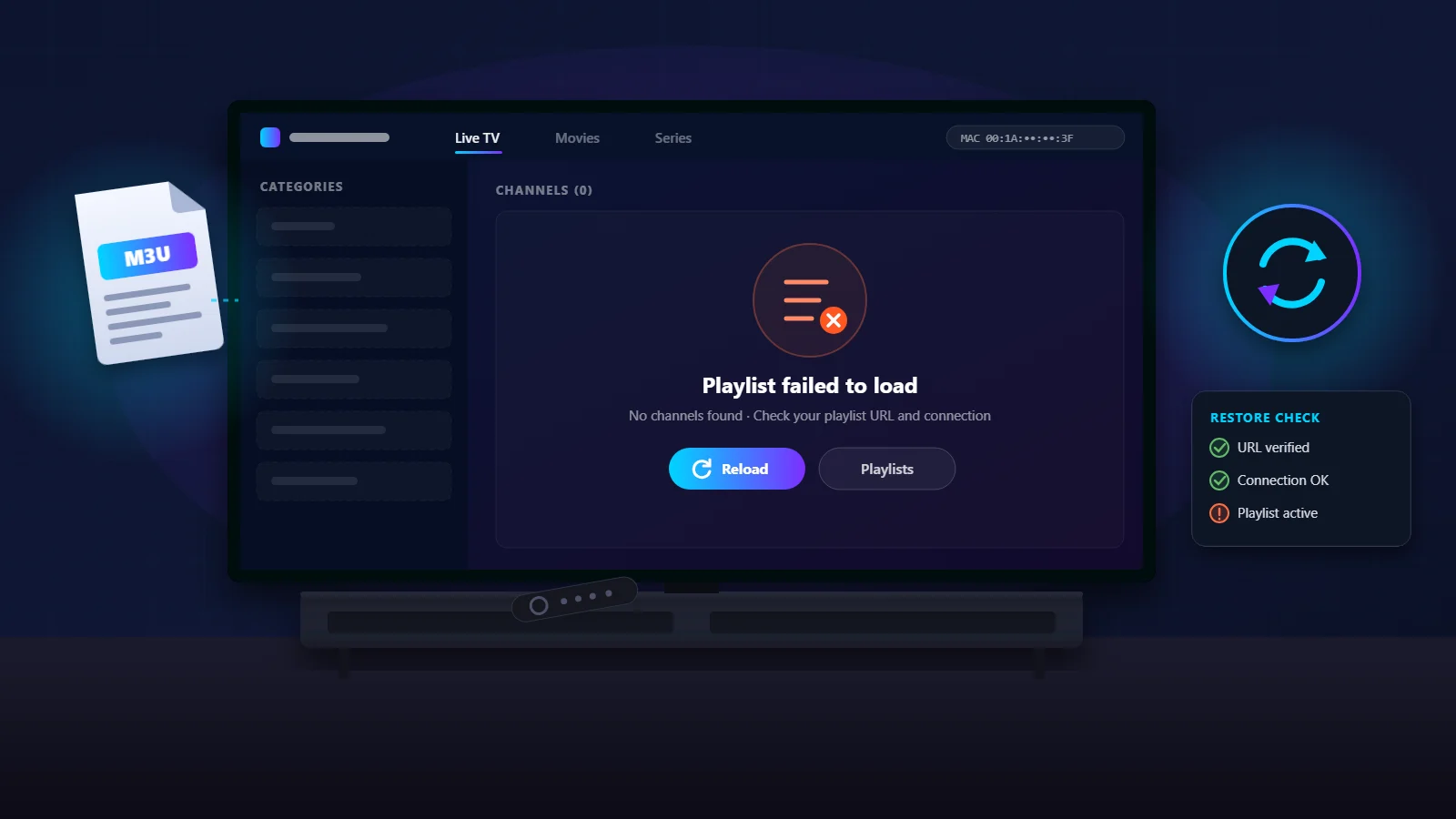
Introduction: Why Is Your IBO Player Playlist Not Working?
You turn on the TV, open IBO Player and, instead of your usual channel list, you see an empty screen, a spinning loader that never stops or a message saying the playlist could not be loaded. Yesterday everything worked. Today nothing does.
When your IBO Player playlist is not working, the most important thing to understand is that IBO Player is a media player only. It does not supply any channels itself. Everything you watch comes from the playlist link supplied by your IPTV provider. So when the playlist breaks, the cause is almost always one of three things: the link, the connection between your TV and the provider, or the app's own state on your device.
This guide walks you through each possibility in order, from 30-second checks to fully removing and re-adding the playlist. If your issue is a specific "authorization failed" or login message, or a blank TV guide, our dedicated guide to fixing IPTV authorization and EPG errors goes deeper on those. Here we focus on getting the playlist itself back.
IBO Player's screens and menu names differ between app versions and devices. Where we describe how IBO Player itself works (Device ID, Device Key and adding playlists through the website), that reflects the developer's documented setup process. Steps such as clearing cache or restarting are general troubleshooting advice that applies to most IPTV players. If a menu we mention does not appear on your version, use the nearest equivalent.
How IBO Player Playlists Work
Understanding the setup makes troubleshooting much easier. IBO Player works differently from apps where you type everything on the TV remote:
- The app identifies your device. When you open IBO Player, it shows a Device ID (formatted like a MAC address) and a Device Key. These are unique to that installation on that device.
- You manage playlists on the website. On a phone or computer, you log in to the official IBO Player website using that Device ID and Device Key, then add your playlist name and the M3U URL from your provider.
- The app downloads the list. After you save the playlist and restart the app, IBO Player fetches the playlist from your provider's server and builds the Live TV, Movies and Series sections from it.
- Each channel streams on demand. When you select a channel, the app requests that individual stream from the provider's server.
IBO Player typically offers a trial period, after which the device must be activated. A playlist problem can therefore sit at any of these layers: the device registration, the saved URL, the provider's server or the connection between them.
Always use the website address shown inside your IBO Player app or on its official app store listing. Copycat sites exist, and you should never enter your Device Key or payment details on a site you reached through an advert or an unknown link.
Common Reasons IBO Player Playlists Stop Working
Expired or invalid playlist URL
Most M3U links contain your IPTV username and password. When the subscription ends, the provider disables those credentials and the URL stops returning channels, even though it looks unchanged.
Incorrect M3U link
A single wrong character breaks the link completely. Common culprits are a missing http://, an extra space at the end, a capital letter changed by autocorrect, or the wrong port number. Links typed by hand are especially prone to this.
Internet connection problems
If the TV has lost its connection, has a very weak Wi-Fi signal or is connected to a network without internet access, the app cannot download the playlist at all.
Temporary application glitches
Apps can get stuck after a TV wakes from standby or after an interrupted download. A playlist that half-loaded may remain cached in a broken state until the app is fully closed.
Outdated application version
Older versions may contain bugs that newer releases have fixed, or may handle large playlists less reliably.
Incorrect device settings
A wrong date, time or time zone on the TV can interfere with secure connections and guide data. Some TVs also have network or privacy settings that limit what apps can access.
Playlist provider server problems
If your provider's server is overloaded, under maintenance or has moved to a new address, the playlist fails for every customer, regardless of which app they use.
DNS or network configuration issues
Your network's DNS service translates the server name in your URL into an address. If DNS fails, or if your ISP blocks the address, the playlist cannot be reached even though other apps work.
Incorrect playlist information
The playlist may have been added to the wrong device (a different Device ID), saved with an old URL from a previous subscription, or entered as the wrong type.
How to Restore Your IBO Player Playlist Step by Step
Work through these steps in order and test after each one. Most playlists come back within the first five steps.
Check your internet connection
Open another streaming app or the TV's built-in browser. If nothing loads, restart your router and check the TV's network settings. If other apps work, move on.
Verify the playlist URL
Compare the URL saved on the IBO Player website with the one your provider sent you, character by character. Pay attention to http versus https, the port number and the username and password inside the link. When in doubt, copy and paste it from the original message rather than retyping it.
Check whether the playlist is still active
Confirm your subscription end date with your provider. A quick test is to paste the URL into a browser on your computer. An active M3U link usually starts a download or shows text beginning with #EXTM3U. An error page or an empty file suggests the link or account is no longer valid.
Restart IBO Player
Fully close the app rather than just pressing Home. On Android TV and Fire TV, use Force Stop in the app settings. On Smart TVs, close it from the recent apps view or restart the TV. Then open it again.
Restart your Smart TV or streaming device
Many TVs only enter standby when you press the power button. Unplug the TV or device from the wall for 60 seconds to perform a true cold restart, which clears temporary memory and resets the network connection.
Refresh or reload the playlist (if supported)
Depending on your version, IBO Player may offer a reload or refresh option in its settings or playlist screen. If yours does, use it to force a fresh download. If not, the reliable alternative is to log in to the IBO Player website, delete the playlist, add it again with the correct URL, save and restart the app.
Clear the application cache (if available)
On Android TV and Fire TV, open the device's app settings, select IBO Player and choose Clear Cache. Some Smart TV platforms also offer a cache option in their storage or device care menus. Avoid clearing all app data unless you have your Device ID and Device Key noted down.
Update the application
Check your TV's app store for an IBO Player update and install it. If automatic updates are off on your TV, turn them on to avoid this in the future.
Recheck playlist details with your provider
If nothing has worked, ask your provider to confirm three things: that your account is active, that the URL they sent is current, and whether the server address has changed recently. Providers sometimes migrate servers and issue new links.
How to Fix IBO Player Playlist Not Loading on Smart TV
Samsung and LG Smart TVs are where most people use IBO Player, and they come with a few platform-specific quirks.
Samsung (Tizen)
- Pressing power usually puts the TV in standby. Hold the power button on the remote until the TV turns off and back on, or unplug it, to force a full restart.
- On recent models, look under the Device Care or storage section of Settings for an option to clear an app's cache.
- Check that the date and time are set automatically.
LG (webOS)
- If a "Quick Start" option is enabled, the TV never fully shuts down. Turn it off temporarily, or unplug the TV, to get a clean restart.
- webOS has limited per-app cache controls, so uninstalling and reinstalling IBO Player is the usual way to reset it. Write down your Device ID and Device Key first.
All Smart TVs
Built-in Wi-Fi on TVs is often weaker than on phones. If your playlist loads slowly or partially, try a wired Ethernet cable or move the router closer. If certain channels display a regional error rather than the whole playlist failing, that is a different problem, covered in our Smart TV "channel not working" guide.
How to Fix IBO Player Problems on Android TV and Fire TV Devices
Android-based devices give you more control, which makes fixing an IBO Player connection problem more straightforward:
- Force stop and clear cache: On Fire TV, go to
Settings > Applications > Manage Installed Applications > IBO Player. On Android TV, go toSettings > Appsand select IBO Player. - Check storage: Large playlists need space to be stored and processed. If storage is nearly full, remove unused apps.
- Check for interfering apps: VPNs, ad blockers and DNS-changing apps can block playlist servers. Disable them temporarily to test.
- Reinstall as a last step: Uninstalling may change the Device ID or Device Key shown in the app. If it does, you will need to add the playlist again on the website, and you may need to check the activation status.
If you are setting up a Fire TV device for IPTV from scratch, our Firestick IPTV setup tutorial for beginners covers installation and player configuration.
M3U Playlist vs Other Supported Playlist Formats
IBO Player is built around M3U playlists. Some IBO-branded apps and versions also accept an Xtream Codes style login. Which options you see depends on your version, so check the website's add-playlist form.
| Format | What you enter | Typical failure | Quick check |
|---|---|---|---|
| M3U URL | One long link containing server, username and password | Typos, expired credentials, changed server | Open it in a browser; look for #EXTM3U |
| Xtream Codes login (where offered) | Server URL, username and password as separate fields | Wrong server port or expired account | Test the same login in another player |
| EPG / XMLTV URL (optional) | Separate link for TV guide data | Channels load but guide is empty | Ask provider for the current guide URL |
A useful detail: an M3U URL usually contains the same server, username and password that an Xtream login uses. If one format fails and the other works, the issue is with how the playlist is generated, not your account.
What to Do When Your Playlist URL Stops Working
If you have confirmed the URL itself is the problem, follow this sequence:
- Confirm the subscription. Renew if it has lapsed. The same URL often starts working again within minutes of renewal.
- Request a fresh link. Ask your provider for the current M3U URL rather than reusing an old message.
- Remove the old entry. On the IBO Player website, delete the broken playlist so the app does not keep trying it.
- Add the new playlist. Give it a clear name, paste the new URL, save it and restart the app.
- Wait for the first load. Large playlists with thousands of channels and movies can take a few minutes the first time. Do not interrupt it.
If you are shopping for a new service because your old provider has disappeared, take a look at the IPTV USA streaming service, which supplies M3U links compatible with IBO Player and other popular players.
How to Identify Whether the Problem Is IBO Player or Your IPTV Provider
The fastest way to narrow down an IPTV playlist not loading problem is to change one thing at a time:
| Test | Result | Most likely cause |
|---|---|---|
| Same URL in another player app | Also fails | Provider, subscription or URL |
| Same URL in another player app | Works | IBO Player on this device |
| IBO Player on a phone using mobile data | Works | Your home network, DNS or ISP |
| URL in a computer browser | Error or empty file | Expired account or wrong link |
| Playlist loads but specific channels fail | Partial | Individual streams on the provider's side |
If tests point to your network, a VPN can sometimes help when an ISP blocks the provider's server, but VPNs can also cause their own playback problems. Our guide to IPTV black screens when a VPN is connected explains what to watch for.
Common IBO Player Errors and Their Possible Solutions
IBO Player does not publish an official list of error codes, and wording varies by version. The table below groups the messages users most commonly describe by symptom, together with the most likely fix.
| What you see | Possible cause | What to try |
|---|---|---|
| Empty playlist / no channels | Expired account or wrong URL | Check subscription; re-add the URL |
| Playlist fails to load or network error | No internet, DNS failure, server down | Restart router; test URL elsewhere |
| Stuck on loading | Very large playlist, weak Wi-Fi, glitch | Wait, then restart app; use Ethernet |
| No playlist added | Playlist saved to a different Device ID | Check the ID in the app matches the website |
| Trial ended or activation message | Device not activated after trial | Activate through the official website or in-app |
| Channels load but will not play | Stream-level or connection limit issue | Close the service on other devices; contact provider |
If channels load but keep stopping to buffer once playing, that is a streaming performance issue rather than a playlist problem. Our complete IPTV buffering troubleshooting guide covers it in detail.
How to Prevent IBO Player Playlist Problems in the Future
- Save your details safely. Keep your Device ID, Device Key and playlist URL in a note on your phone.
- Track your renewal date. Set a reminder a few days before your IPTV subscription expires.
- Copy and paste, never retype. It eliminates the most common playlist error entirely.
- Keep the app and TV firmware updated. Turn on automatic updates where available.
- Restart the TV properly once a week by unplugging it or using a full restart.
- Use a stable connection. Ethernet or strong 5 GHz Wi-Fi helps large playlists load fully.
- Stay within your connection limit. Do not use the same account on more devices than your plan allows.
For help installing IPTV players on other devices in your home, see our step-by-step installation guide for all devices.
Frequently Asked Questions
Why is my IBO Player playlist not working?
IBO Player only plays the playlist your provider supplies. The usual causes are an expired subscription, a wrong or changed M3U link, a provider outage, an internet or DNS problem, or a temporary app glitch.
How do I restore my IBO Player playlist?
Check your connection and subscription, restart the app and TV, then log in to the IBO Player website with your Device ID and Device Key. Remove the old playlist, add the correct URL, save and restart the app.
Why does IBO Player show an empty playlist?
The app reached the link but received no usable channel list, usually because the account has expired, the credentials are wrong or the server is down. Test the URL in another player to confirm.
Why is my M3U playlist not loading?
Common reasons are a typo, a changed username or password, a new server address from your provider, or a network block. Copy the link again from your provider's original message.
Does IBO Player need an internet connection?
Yes. It downloads the playlist and streams every channel online, and playlists are managed through the developer's website.
Can an expired playlist stop working?
Yes. Once a subscription expires, the credentials inside the URL are deactivated and the playlist appears empty or fails to load until you renew.
How do I update IBO Player?
Through your device's app store: the Samsung or LG store, Google Play on Android TV, or the Amazon Appstore on Fire TV. Turn on automatic updates to stay current.
Why does IBO Player work on one TV but not another?
Each device has its own Device ID and Device Key, so the playlist must be added to each one separately, and each may need activation. Network differences and connection limits can also play a part.
Should I reinstall IBO Player if my playlist stops working?
Only after checking the URL, subscription and connection. Reinstalling will not fix an expired or incorrect link. Note your Device ID and Device Key first.
Final Thoughts
An IBO Player playlist not working is frustrating, but it is rarely a mystery. Because IBO Player is simply a player, the fix nearly always comes down to the playlist link, the subscription behind it, your network, or the app's state on your TV. Check them in that order, test after each change, and use another player or a browser to quickly see whether the problem sits with the app or the provider.
Most playlists can be restored by confirming the URL, restarting properly and re-adding the playlist on the IBO Player website. Keep your Device ID, Device Key and playlist link saved, and you can recover from almost any problem in minutes.
If your current provider keeps sending broken links or goes offline regularly, a dependable source makes all the difference. Visit the IPTV USA home page to see supported players and features.
Related Articles
Reliable Playlists for IBO Player
50,000+ Channels · 134,000+ Movies & Series · 4K UHD Quality · 24/7 Dedicated Support
📺 Explore Plans & Pricing