
Firestick Keeps Crashing When Watching Live TV? Quick Fixes to Try
Apps closing mid-game, a frozen picture, or a stick that reboots itself? Here is why Fire TV devices crash during live TV and exactly how to stop it.
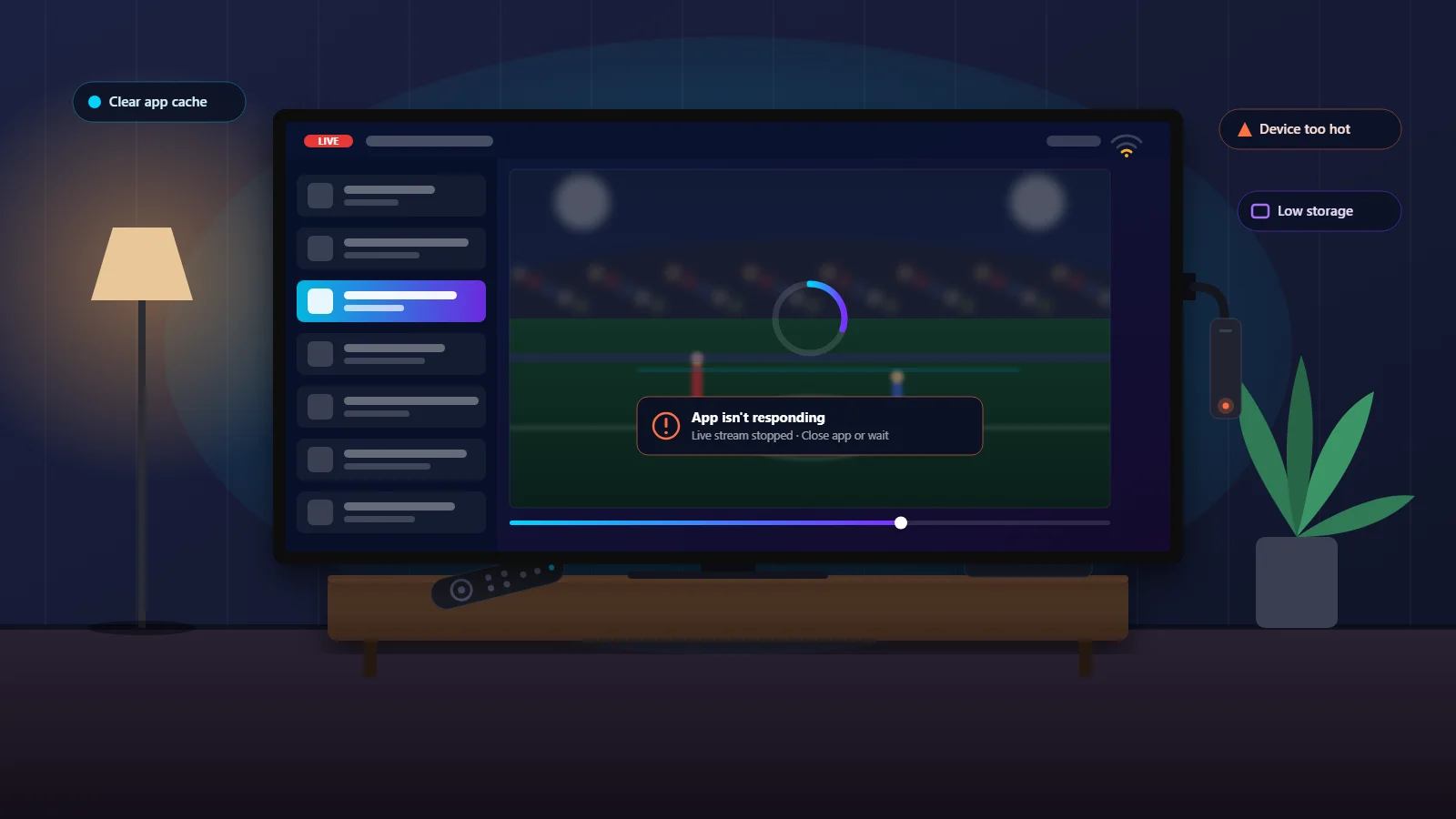
Why Does My Firestick Keep Crashing When Watching Live TV?
The game is tied, there are two minutes left, and the screen freezes. A second later the app closes and you are staring at the Fire TV home screen. If your Firestick keeps crashing when watching live TV, you are dealing with one of the most common complaints among cord-cutters, and the good news is that it is usually fixable without buying anything new.
A Fire TV Stick is a small computer with a modest processor, limited memory, limited storage and no cooling fan. Watching on-demand movies rarely pushes it hard. Live TV is different: the device has to decode a continuous stream for hours, keep a large channel list and TV guide in memory, and often write a timeshift buffer to storage at the same time. When something in that chain is under strain, the result is freezing, app crashes or a full restart.
This guide focuses on crashes, meaning apps that close, screens that lock up completely and devices that reboot. If your picture keeps pausing to load but the app never actually closes, that is buffering, and our step-by-step IPTV buffering and freezing guide covers network-side fixes in depth. Here we concentrate on the device itself.
Common Signs of Firestick Crashing Problems
Identifying exactly how your stick fails is the fastest route to the right fix. Look for these patterns:
- The app closes and drops you to the home screen, often while changing channels or opening the TV guide. This usually points to the app itself, its cache or low memory.
- The picture freezes but audio keeps playing, or the whole screen locks up and the remote stops responding. This suggests the processor is overloaded or overheating.
- The Firestick keeps restarting and shows the Fire TV logo mid-stream. Spontaneous reboots are most often linked to power delivery or heat.
- An "app isn't responding" message appears, offering to close the app or wait.
- Menus become sluggish after an hour or two of viewing, then the app crashes. That gradual slowdown is classic thermal throttling or memory pressure.
- A warning about storage, power or temperature appears on screen. Fire OS can display these notices, and they should never be ignored.
Make a quick note of when the crash happens: after how long, on which app, and whether other apps behave normally. You will use that information in the steps below.
Why Does Firestick Crash During Live TV Streaming?
Most Firestick live TV problems trace back to one of nine causes. Several can stack together, which is why a fix that worked last month may not work today.
1. Insufficient device storage
Fire TV Sticks ship with 8 GB or 16 GB of storage, and a good part of that is used by Fire OS. Apps, their caches, downloaded updates and timeshift buffers fill the rest quickly. When free space runs low, apps cannot write temporary files, updates fail and crashes become frequent.
2. Overheating and poor ventilation
With no fan, the stick relies on passive cooling. Plugged directly into the back of a wall-mounted TV, it sits in a pocket of warm air. During long live sessions the chip heats up, slows itself down to protect the hardware and can eventually freeze or shut down.
3. Outdated Fire OS software
Fire OS updates include stability fixes, media framework improvements and security patches. A device that has not updated in months may struggle with newer app versions built for the current system.
4. Outdated streaming applications
The opposite problem is just as common: an old version of your live TV app that has known crash bugs, or a sideloaded app that no longer receives updates at all.
5. Corrupted app cache and data
Live TV apps cache channel logos, guide data and stream information. If that cache becomes corrupted or bloated, the app may crash every time it loads the guide or a particular category.
6. Weak or unstable internet connection
A poor connection mostly causes buffering, but a stream that repeatedly drops and reconnects can push some apps into an error loop that ends in a crash.
7. Too many background processes
Apps you opened earlier may still be running. On a device with 1 to 2 GB of RAM, a few background apps plus a live stream and a large guide can exhaust memory, and the system starts killing apps to recover.
8. Streaming app compatibility problems
Some apps are designed for phones or for more powerful Android TV boxes. Their default video player or decoder settings may not suit your Fire TV model, especially with high-bitrate 4K or 60 fps sports channels.
9. Power supply and USB connection issues
This is the most underrated cause. Powering a Firestick from the TV's USB port, using a phone charger or a long third-party cable can deliver too little power when the device is working hardest, which is exactly when live TV is playing. The result is random freezes and reboots.
Quick Fixes to Try First
Before changing settings, run through these six checks. Together they take about ten minutes and resolve a large share of crashes.
- Restart your Fire TV Stick. Hold Select and Play/Pause together for about five seconds until the device restarts, or go to
Settings > My Fire TV > Restart. - Force stop the problematic application. Go to
Settings > Applications > Manage Installed Applications, select the app and choose Force Stop. This fully closes it rather than leaving it suspended in the background. - Clear the app cache. On the same screen, choose Clear Cache. Your logins and playlists stay intact.
- Check available storage. Open
Settings > My Fire TV > About > Storage. If you have less than 1 GB free, that alone could explain the crashes. - Check your internet connection. Go to
Settings > Network, highlight your network and press Play/Pause to see its status and signal. - Let the device cool down. If the stick feels hot to the touch, unplug it for 10 to 15 minutes before testing again.
Test after each step rather than doing everything at once. If the crash stops after clearing the cache, you know the cause and can prevent it in future.
How to Fix Firestick Crashing Step by Step
If the quick fixes did not hold, work through this sequence in order. Each step builds on the last, moving from simple to more involved.
Restart Firestick properly (a cold restart)
A menu restart does not always clear everything. Unplug the power cable from the wall, wait a full 60 seconds, then plug it back in. This empties memory completely and lets the hardware cool, which a soft restart cannot do.
Clear cache, then data if needed
Clear the cache of your live TV app first. If it still crashes, choose Clear Data. This resets the app to a fresh state, so have your login details or playlist URL ready before you do it.
Update Fire OS
Go to Settings > My Fire TV > About > Check for Updates. If an update is available, choose Install Update and leave the device alone until it restarts. Updates need free storage, so complete Step 5 first if space is tight.
Update your streaming applications
Appstore apps can update automatically, but check under Settings > Applications > Appstore > Automatic Updates. For apps installed outside the Appstore, open the app and look for an update option in its settings, or install the latest version from its official source.
Uninstall unnecessary applications
Remove apps you no longer use from Manage Installed Applications > Uninstall. Delete leftover installer files from file manager apps too, since these can take up hundreds of megabytes without you noticing.
Check HDMI and power connections
- Plug the original power adapter into a wall outlet, not the TV's USB port.
- Use the original USB cable. Thin or long third-party cables can lose voltage.
- Try a different HDMI port on your TV, and use the HDMI extender that came with the stick.
- Avoid power strips with many devices drawing current at the same time.
Improve your Wi-Fi signal
Connect to your router's 5 GHz network if it has one, move the router closer or remove obstacles between them. The HDMI extender also helps reception, because the stick no longer sits directly behind the TV's metal back panel. For a fully stable link, a USB Ethernet adapter is worth considering.
Reinstall the problematic application
If one app still crashes after everything above, uninstall it, restart the stick and install a fresh copy. If you need a refresher on installing and configuring a live TV app, our beginner's Firestick IPTV setup tutorial walks through the process from scratch.
How to Stop Firestick from Overheating
Firestick overheating is behind many of the crashes that appear "randomly" after an hour or more of viewing. Heat builds slowly, so the device works fine at first and then fails mid-match. These habits keep temperatures under control:
- Always use the HDMI extender. It moves the stick away from the hot TV chassis and into open air.
- Give wall-mounted TVs breathing room. If the TV sits flush against the wall, try a port on the side, or route the stick so it hangs below the TV.
- Keep it out of enclosed cabinets and away from soundbars, receivers and consoles that give off heat.
- Turn it off when you are not watching. Put it to sleep, or unplug it overnight occasionally, rather than leaving an app streaming in the background.
- Reduce load on older models by choosing HD channels instead of 4K where possible and limiting very large TV guides.
Never cover the stick, wrap it in tape or place it next to a heat source. If it is too hot to hold comfortably, unplug it and let it cool before using it again.
How Much Storage Does Firestick Need for Smooth Streaming?
There is no official minimum, but in practice the device runs noticeably better with breathing room. As a working rule, keep at least 1 to 2 GB free at all times, and more if your live TV app uses timeshift or recording features that write video to local storage.
| Free storage | What to expect | Action |
|---|---|---|
| Under 500 MB | Frequent crashes, failed updates, apps closing | Uninstall apps and clear caches immediately |
| 500 MB – 1 GB | Occasional freezes, slow menus | Remove unused apps and old installer files |
| 1 – 2 GB | Generally stable for live TV | Clear caches monthly |
| 2 GB or more | Comfortable headroom, smooth updates | Maintain with routine clean-ups |
The biggest storage consumers are usually forgotten apps, duplicate players, cached guide images and installer files. Checking once a month takes less than a minute.
Why Does Firestick Crash Only When Watching Live TV?
Many readers notice that Netflix-style apps run perfectly while live channels crash. That pattern makes sense once you compare the workloads:
- Continuous decoding. On-demand videos can be buffered well ahead. Live streams arrive in real time, so the decoder works constantly with little margin.
- Large TV guides. A guide with thousands of channels and several days of listings uses significant memory, and loading it is a common crash point.
- Timeshift and catch-up. Pause and rewind features write video to storage, adding pressure when space is tight.
- Channel zapping. Every channel change tears down one stream and starts another. Rapid surfing can overwhelm a low-memory device.
- Long sessions. A three-hour game generates far more heat than a 45-minute episode.
- High-bitrate sports. 60 fps or 4K sports channels demand much more from the processor than typical movie streams.
Practical responses include shortening the guide range (for example, two days instead of seven), hiding channel groups you never watch, scheduling guide updates for off-peak hours and switching between hardware and software decoding in the app's player settings to see which is more stable on your model.
How to Fix Firestick Crashing on Different Fire TV Models
Not every Fire TV device has the same headroom. Specifications below are approximate and vary by generation, so confirm your exact model under Settings > My Fire TV > About.
| Model | Typical storage | Common weak point | Best fix |
|---|---|---|---|
| Fire TV Stick Lite | 8 GB | Limited RAM, struggles with large guides | Keep few apps installed, trim guide, avoid 4K streams |
| Fire TV Stick (standard) | 8 GB | Storage fills quickly, heat in long sessions | Monthly storage clean-up, HDMI extender |
| Fire TV Stick 4K | 8 GB | Power-sensitive when decoding 4K | Original adapter in a wall outlet |
| Fire TV Stick 4K Max | 8–16 GB | Heat behind wall-mounted TVs | Improve airflow, keep Fire OS updated |
| Fire TV Cube | 16 GB | Rarely hardware-limited; usually app issues | Clear cache, reinstall or update the app |
If you own an older or entry-level stick and crash every evening despite following every step, the hardware may simply be at its limit for the streams you watch. Lowering stream quality is the free option; upgrading to a newer model with more memory is the permanent one.
Can Internet Problems Cause Firestick to Crash?
Indirectly, yes. A weak connection usually produces buffering rather than a crash, but repeated disconnections can trap some apps in a reconnect loop that ends with them closing. DNS failures and blocked connections can also make an app hang on a black screen until it times out.
A simple test helps separate network from device problems: play the same channel on a phone connected to the same Wi-Fi. If the phone plays smoothly while the stick crashes, the cause is on the Firestick. If both struggle, look at the network first.
If crashes or black screens appear only when a VPN app is running, the VPN may be competing for memory or blocking the stream. Our guide to fixing an IPTV black screen while a VPN is connected covers protocol, DNS and server fixes. For a broader look at when a VPN helps and how to configure one for streaming, read why a VPN matters for IPTV streaming.
When Should You Factory Reset Your Firestick?
A factory reset erases every app, login and setting, returning the device to how it left the box. It is effective against deep software corruption, but it should be your last step, not your first.
Consider a reset when:
- Crashes happen across several different apps, not just one.
- You have already cleared caches, freed storage, updated Fire OS and fixed the power supply.
- The system menus themselves freeze or the device boot-loops.
To reset, go to Settings > My Fire TV > Reset to Factory Defaults. If the menus are unusable, hold the Back button and the right side of the navigation ring together for about 10 seconds and follow the prompt. Write down your Wi-Fi password and app logins first, then reinstall only the apps you actually use.
If crashes continue on a freshly reset device with the original power adapter and good airflow, contact Amazon support. Persistent reboots on clean software can indicate a hardware fault.
Common Mistakes to Avoid When Fixing Firestick Problems
- Jumping straight to a factory reset. You lose all your setup when a cache clear might have worked.
- Clearing data instead of cache. Clear Data wipes logins and playlists. Try Clear Cache first.
- Powering the stick from the TV's USB port. It is convenient, but it is one of the most common causes of random restarts.
- Installing several "cleaner" or "booster" apps. Many run in the background and use the very memory they claim to free.
- Ignoring on-screen warnings about power, storage or temperature.
- Changing many settings at once. When something finally works, you will not know which change fixed it.
- Keeping duplicate players installed. Three IPTV apps with their own caches take up storage and memory for no benefit.
If your crashes started right after entering new login details or loading a new playlist, check that the credentials and guide URL are correct. Our guide to fixing IPTV login and EPG errors explains how bad guide data and login problems show up.
Frequently Asked Questions
Why does my Firestick keep crashing during live TV?
Live TV is the most demanding job a Fire TV Stick does: hours of continuous decoding, a large guide in memory and often a timeshift buffer. The usual causes are low storage, overheating, an underpowered power source, a bloated cache and outdated software.
Why does Firestick restart by itself?
Spontaneous reboots usually point to power or heat. Use the original adapter plugged into a wall outlet, use the HDMI extender for airflow, and only then look for software causes.
Can overheating make Firestick crash?
Yes. Without a fan, a stick behind a wall-mounted TV can get hot enough during long sessions to slow down, freeze apps or restart. Better airflow and a short cool-down usually solve it.
Does clearing cache fix Firestick crashing?
Often. A corrupted or oversized cache is a common reason one app crashes when it loads channels or the guide. Clearing cache keeps your logins; clearing data does not.
Why does my Firestick crash only with one app?
If every other app works, the issue is inside that app: corrupted cache, an outdated or buggy version, a player setting your model handles poorly, or an oversized guide. Clear the cache, update or reinstall it, and try changing its decoder setting.
Can low storage cause Firestick freezing?
Yes. With very little free space, apps cannot write temporary files and updates fail, which causes freezing and crashes. Keep at least 1 to 2 GB free.
Should I factory reset my Firestick?
Only after the simpler steps have failed and the crashes affect several apps. A reset erases everything, so it is a last resort.
How do I stop Firestick from freezing while streaming?
Keep storage free, use proper power, improve airflow, keep Fire OS and apps updated, close unused apps and restart the stick weekly. For freezes caused by the network rather than the device, see our IPTV buffering troubleshooting guide.
Final Thoughts
When a Firestick keeps crashing during live TV, the cause is rarely mysterious. In most homes it comes down to a handful of fixable issues: not enough free storage, a stick that runs too hot, weak power from a TV USB port, a corrupted app cache or outdated software. Work through the quick fixes first, then the step-by-step sequence, and test after each change so you know what made the difference.
Build in a simple routine to keep things stable: restart weekly, clear caches and check storage monthly, keep Fire OS updated and always use the original power adapter with the HDMI extender. Most sticks that follow those habits stop crashing for good.
A stable device works best with a stable stream. If you are looking for reliable live channels to pair with a healthy Fire TV setup, explore the IPTV USA live TV service, or visit our supported devices and features overview to see what works with Fire TV.
Related Articles
Smooth Live TV on Your Fire TV Stick
50,000+ Channels · 134,000+ Movies & Series · 4K UHD Quality · 24/7 Dedicated Support
📺 Explore Plans & Pricing