
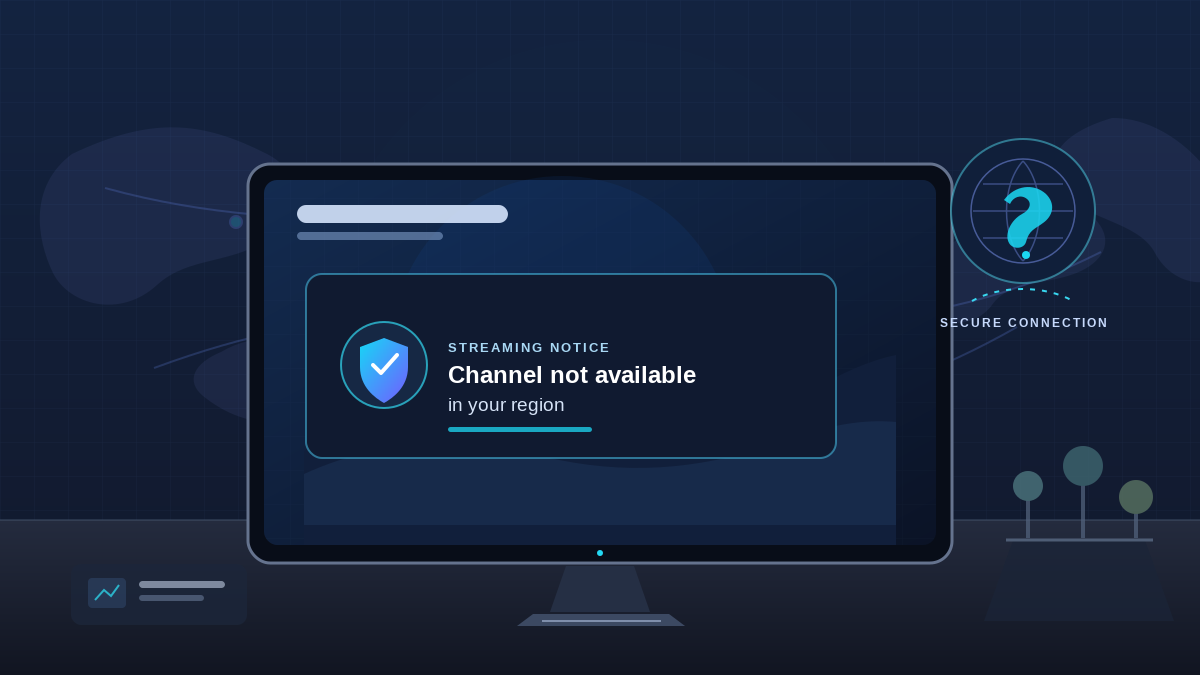
Fix 'Channel Not Working': How to Bypass Geo-Restrictions on Your Smart TV
A practical guide to regional availability, VPNs, Smart DNS, and troubleshooting channels that will not load.
Introduction: Why Is Your Channel Not Working?
You settle in, open a familiar app, and instead of the program you expected, the screen says “Channel Not Working,” spins forever, or announces that the channel is unavailable in your region. The message alone does not identify the cause: it could be an outage, expired sign-in, weak connection, or location restriction.
This guide helps you Fix Channel Not Working errors by separating common causes before you change network settings. Learn what VPNs and Smart DNS can and cannot do, then work through a practical checklist for streaming apps and legitimate IPTV services. Menus vary by TV model.
For supported screens and setup options, see the IPTV USA service and device overview. A VPN may help protect privacy, but it cannot guarantee access to every geo-restricted channel. Check service terms and regional rights first.
What Does “Channel Not Available in Your Region” Mean?
Streaming companies license programs by country or territory. Without rights in your area, a service may hide a title or block playback. A blackout may also apply to just one event or time period.
Services may estimate location from your public IP address, account and billing country, device permissions, or DNS details. IP databases can be wrong, but a VPN only changes the network address they see; apps may use other checks, detect VPN endpoints, or enforce account and licensing rules.
Compare the message with the official availability page and your account profile. If you are in a supported area but have been mislocated, contact the service or ISP rather than repeatedly switching locations.
Common Reasons Smart TV Channels Stop Working
Smart TV channels not working does not automatically point to geo-blocking. Use the symptom to narrow the diagnosis:
- Only one channel or program fails: The content may be temporarily offline, regionally restricted, or removed from the provider’s lineup.
- The entire app fails: Check the service status, account sign-in, subscription, and app update before troubleshooting Wi-Fi.
- The channel loads on your phone but not the TV: The television app may need an update, a fresh sign-in, or a cache reset; the devices may also be on different networks.
- Every service buffers or times out: Suspect Wi-Fi interference, router trouble, a weak internet connection, or a TV that needs a restart.
- A VPN changes the error: The app may be reacting to the VPN endpoint, DNS path, or account-region checks; that does not prove the channel is available through the VPN.
- IPTV channel not working while other channels play: The source stream or provider lineup may be temporarily unavailable. Check another channel and ask the provider to verify that specific stream.
Test the same channel on another device and another channel on the TV. For a first-time device setup, see the beginner’s Fire TV IPTV setup guide.
How Geo-Restrictions Work on Smart TVs
A Smart TV has no universal “country switch” for all apps. Region may depend on the app-store country, TV settings, account profile, IP address, location permission, or payment country. Changing a TV setting does not change the rights on your streaming account.
A VPN encrypts traffic to its server, so a service typically sees the server’s public IP instead of your home address. This adds a network hop, and apps may block VPN IPs or check other signals. Smart DNS routes selected name lookups differently but does not encrypt all TV traffic. Neither changes licensing rights or guarantees access.
How to Bypass Geo-Restrictions on Your Smart TV
If traveling, check the service’s official travel access, account requirements, and local law. Use VPN or DNS settings only when permitted, and choose a method supported by your TV. Otherwise, ask the provider for an authorized option.
These setup paths do not promise access. Support varies by model; record settings so you can restore them.
Method 1: Use a VPN on Your Smart TV
Use this option if your TV has an official VPN app. Android TV, Google TV, and Fire TV commonly offer apps; Apple TV support depends on version. Many Samsung Tizen and LG webOS TVs do not, so consider a supported router or hotspot.
- Check your TV’s official app store and the VPN provider’s supported-device list. Avoid unofficial apps that request unnecessary access.
- Install the provider’s app, sign in, and review its privacy, auto-connect, and network protection settings.
- If permitted by the streaming service, choose an appropriate server location and connect. A nearby server usually offers lower latency, but location selection does not assure channel availability.
- Close and reopen the streaming app. If playback fails, disconnect the VPN once to compare, then check the app’s terms and VPN support before proceeding.
A VPN provider’s server list does not mean every channel will work; services may detect VPNs or account-region mismatches.
Method 2: Install a VPN on Your Router
A VPN router covers TVs without VPN apps, but may route every connected device through the tunnel unless it supports per-device rules. Encryption can also reduce speed, especially on older routers.
- Confirm that your router model and firmware support a VPN client, not just VPN passthrough. Check the manufacturer’s setup instructions.
- Back up the router configuration. Use the VPN provider’s official configuration files and credentials; never paste credentials from an untrusted source.
- Configure the VPN client, connect, then test internet access on one device before moving the TV to that network.
- If the router supports device-specific routing, apply it only where needed. Verify speed and streaming stability, and keep a way to restore your original settings.
A compatible secondary router may work; check with its manufacturer or ISP. Router VPNs can affect other devices and complicate troubleshooting.
Method 3: Use Smart DNS
Smart DNS can suit TVs with limited VPN support: its provider gives you DNS addresses for the TV or router and may route selected streaming lookups. Support is not universal, and platforms may block it. It does not encrypt ordinary traffic or hide your public IP like a VPN.
- Check that the streaming provider and Smart DNS provider support your intended use and device.
- Follow the Smart DNS provider’s official guide to register your current IP and obtain its DNS settings.
- Record your existing DNS configuration, then enter the provided addresses in the TV’s network settings only if the service allows it.
- Restart the TV or reconnect Wi-Fi, then test a service that is explicitly supported. Restore automatic DNS if other apps stop working.
DNS changes may disrupt apps; avoid unverified addresses.
Method 4: Connect Your Smart TV to a VPN-Enabled Hotspot
A laptop or phone can share internet with a TV, but hotspot behavior varies. Some devices share the VPN tunnel; others do not. Mobile carriers may limit hotspot data or speed.
- Install a reputable VPN app on the laptop or phone and confirm that hotspot sharing is supported by its operating system and provider.
- Connect to your normal network, enable the VPN, then create a protected Wi-Fi hotspot using the device’s built-in sharing feature.
- Connect the TV to that hotspot and verify the VPN route using the provider’s own status tools or support guidance.
- Test playback only where the service permits VPN use. If the connection is slow, return the TV to your regular home Wi-Fi.
Hotspots are useful for testing, but may be slow or consume mobile data.
How to Choose the Best VPN for Smart TV Streaming
For a Smart TV VPN, compare practical support and privacy features—not just the number of countries advertised:
- Platform support: Confirm there is an official app for your exact TV platform, or clear router/hotspot instructions.
- Independent privacy information: Read the provider’s logging policy and look for recent, credible independent audits. A VPN shifts trust from your ISP to the VPN company.
- Stable performance: A nearby, uncongested server and modern protocols can reduce added delay, but your underlying broadband and the service’s route still matter.
- Useful safeguards: Look for clear connection status, automatic reconnection options, and support for your router model. Understand what happens if the tunnel drops.
- Transparent limitations: Be wary of claims that a provider can unlock every service or guarantee every channel.
Read refund terms and test the service on your network. For IPTV network advice, see our step-by-step guide to fixing IPTV buffering.
VPN vs Smart DNS: Which Is Better?
Choose based on your goal: a VPN provides privacy and network routing, while Smart DNS is a non-encrypted option for selected services. Either can fail or affect playback if misconfigured.
| Feature | VPN | Smart DNS |
|---|---|---|
| Encrypts TV traffic | Yes, while connected through the tunnel | No |
| Changes apparent public IP | Usually, to the VPN server IP | Generally no |
| Smart TV compatibility | Native app, router, or hotspot required | Can work through TV/router DNS settings |
| Potential speed impact | Can add latency and reduce throughput | Often low, but depends on routing and service |
| Guarantees channel access | No | No |
| Best fit | Privacy and protected traffic on supported devices | Specific compatible apps where DNS access is permitted |
Step-by-Step Troubleshooting Guide for Channels That Won't Load
Work through these checks in order to isolate the app, account, TV, network, or regional policy:
- Check service status. Look at the streaming provider’s official status page or support feed. If the service is down, network changes will not fix it.
- Test the scope. Try another channel, app, or device on the same Wi-Fi.
- Confirm the account. Sign in again, verify the subscription is active, and check the profile or home-country settings. If traveling, check the service’s travel policy.
- Restart the app and TV. Close the app fully, power the TV off, unplug it for about 30 seconds, then reconnect. A standby-only restart may not clear a stuck app.
- Update software. Install official TV and app updates, and check the date and time.
- Check the network. Restart the router if other devices are affected; test Ethernet or move closer to Wi-Fi. Avoid changing DNS until you have recorded its current value.
- Clear app data carefully. Try clearing cache first; clearing storage may sign you out or erase preferences.
- Test without VPN or custom DNS. If you use either, temporarily restore your usual connection and compare the same channel. This isolates a network configuration issue; it does not establish that restricted access is authorized.
- Contact support with useful details. Share TV model, app version, exact error text, time of the issue, and whether other channels/devices work. Do not send passwords or payment details in a public forum.
Change one thing at a time and note it, so you can undo an unsuccessful adjustment.
How to Fix IPTV Buffering, Black Screens, and Channel Errors
For an IPTV channel not working, separate provider problems from device faults. If one channel fails, report it and the time to your provider. If all fail, check credentials, subscription, playlist or portal address, and service status. Use only authorized services and content.
- Buffering: Test a wired Ethernet connection or 5 GHz Wi-Fi, pause large downloads, and check whether other devices are using bandwidth. A VPN can make buffering worse if its server or route is slow.
- Black screen with audio or no picture: Try another channel and player, restart the app, and confirm the stream format is supported by the TV. If it only fails with the VPN active, compare briefly on your normal connection and consult the provider’s compatibility guidance.
- Login or authorization error: Check for typos, expired credentials, account device limits, or provider-side account changes. A VPN exit IP may trigger an additional security check.
- Guide data missing: Refresh the EPG inside the player and verify the guide source and time zone with the provider. Guide data can be separate from live video availability.
See our IPTV buffering and freezing guide for network and player fixes, or the VPN black-screen troubleshooting article for VPN-specific errors.
Common VPN Problems on Smart TVs and How to Fix Them
- The app blocks the VPN: Check the provider’s rules and authorized access options; do not assume another endpoint will work.
- VPN app is unavailable: Many TV operating systems do not permit direct installation. Use a supported router or hotspot setup, or choose the provider’s official alternative for your model.
- Slow playback: Compare with the VPN disconnected and check your base connection. A closer server may help, but cannot fix a weak link or overloaded service.
- Location still appears wrong: Account country, device settings, DNS, or app data may matter. Confirm settings with the service or VPN provider.
- Other devices lose access: A router VPN may cover the whole household. Disable it for affected devices or configure supported per-device routing, then test each device separately.
For more detail, see our guide to IPTV black screens when a VPN is connected.
Is Using a VPN Legal?
VPNs are legal in many places, but laws vary. Providers may still restrict VPN use or enforce licensing and account terms.
Check local rules and service terms. Do not use a VPN for pirated streams or to evade payment and eligibility rules; travelers should look for official access or licensed local broadcasters.
Frequently Asked Questions (FAQ)
Why does my Smart TV say a channel is not available in my region?
The program may not be licensed there, an event may be blacked out, or the service may have misidentified your IP. Check official availability and account settings.
Will a VPN always unblock geo-blocked streaming channels?
No. Services may detect VPN endpoints or check account and device signals. A VPN cannot override licensing or terms.
Can I install a VPN directly on my Smart TV?
Android TV, Google TV, and Fire TV often support VPN apps. Many Samsung and LG TVs do not; a supported router or hotspot may work.
Is Smart DNS safer than a VPN?
No. VPNs encrypt traffic through a tunnel; Smart DNS does not provide equivalent encryption or IP privacy.
What is the fastest first fix for a channel that will not load?
Check service status, another channel and device, and your account, then restart the app and TV. Test VPN or DNS changes only afterward.
Final Thoughts
To Fix Channel Not Working on a Smart TV, start with evidence rather than changing location. Regional licensing, app or account faults, network trouble, and outages can look similar. Test another device, check service status, and verify your account first.
For supported devices and service information, visit the IPTV USA home page and device overview.
For privacy or permitted travel access, use a supported method and understand the trade-offs. A VPN can slow down, be blocked, or fail location checks. Follow local law and provider terms.